Add a Journaling Rule
Source: support.titanhq.com Product: PhishTitan Imported content type: docs_page Product stream: email-security
Add a Journaling Rule
Section titled “Add a Journaling Rule”As part of configuration, you need to create a journaling rule in Microsoft 365 to allow email flow through the Email Security service.
A journaling mailbox is the mailbox that receives messages that match a journaling rule’s conditions. Messages matching the rule’s conditions are delivered to the journaling address specified in the rule.
You have a unique Email Security journaling address available to you in Email Security to create the journaling rule.
Follow the steps below to add a journaling rule for Email Security to Microsoft 365.
-
From the customer level in Email Security, go to Settings > Connections.
-
Under Step 2 Add a journaling rule to Microsoft 365, select More Details.
-
Select the
 icon to copy your unique journaling email address.
 -
Go to https://purview.microsoft.com/datalifecyclemanagement/exchange
-
From the left menu, select Exchange (legacy) > Journal rules.
-
Select the
 New rule tab.
 -
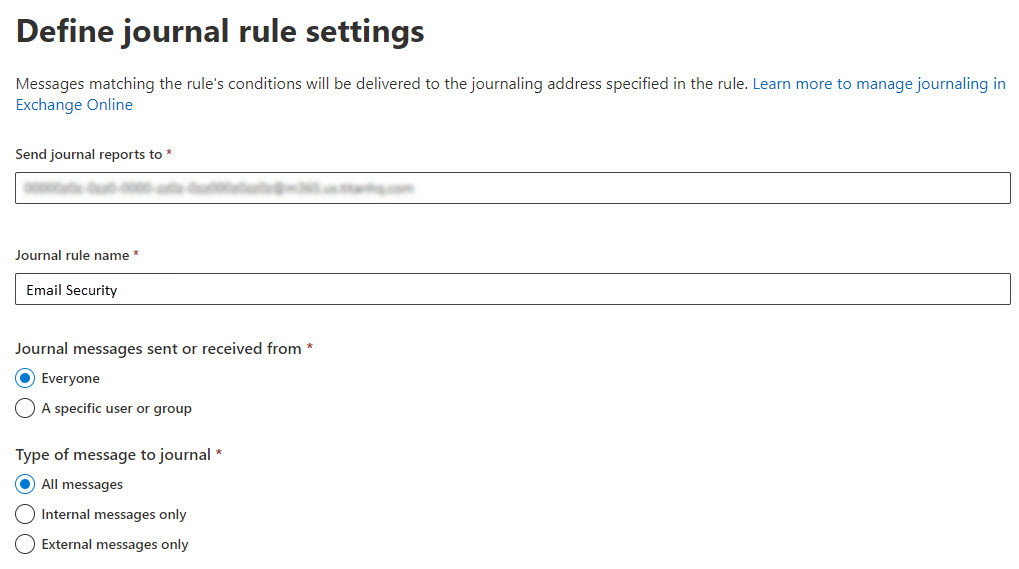
Paste the journaling email address copied in Step 3 into the Send journal reports to: field.
-
Under Journal messages sent or received from, select Everyone.
-
Under Type of message to journal, select All messages. The completed form should look as follows:
-
In the Journal rule name: field, enter a name for this rule. For example, Email Security.
-
Select Next and then Submit.