Viewing an Incident
Source: support.titanhq.com Product: PhishTitan Imported content type: docs_page Product stream: email-security
Viewing an Incident
Section titled “Viewing an Incident”-
Go to Email Security > Incidents. Incidents reported by a user are listed in the Action Needed tab. In the Resolved tab, you can see incidents flagged by the system, including auto remediation if you’ve set that up, and the ones you’ve marked as safe or sent to junk (remediated).
You can manage how the table is displayed as follows:
-
Use the Search
 box to search the list of incidents.
 -
Select the column
 icon to manage how table columns are displayed. By default, all columns are visible and arranged in a specific order. You can change the display by doing the following:
-
View or hide columns using the toggle.
-
Use the reordering
 icon to move columns up and down the list. This changes the left-to-right display. An item at the top of the list, for example, means that it will be the first column on the left. Select Restore Defaults to restore the columns to their default positions.
-
-
Resize columns by hovering your cursor over the column boundary you want to adjust until it becomes a resize
 cursor. Drag the boundary until the column is the width you want.
 -
Select the up/down
 arrows in the column headers to sort column content.
-
-
To view additional details of an incident, locate the incident in the table and select it. The Incident Summary slides out from the right side of the page.
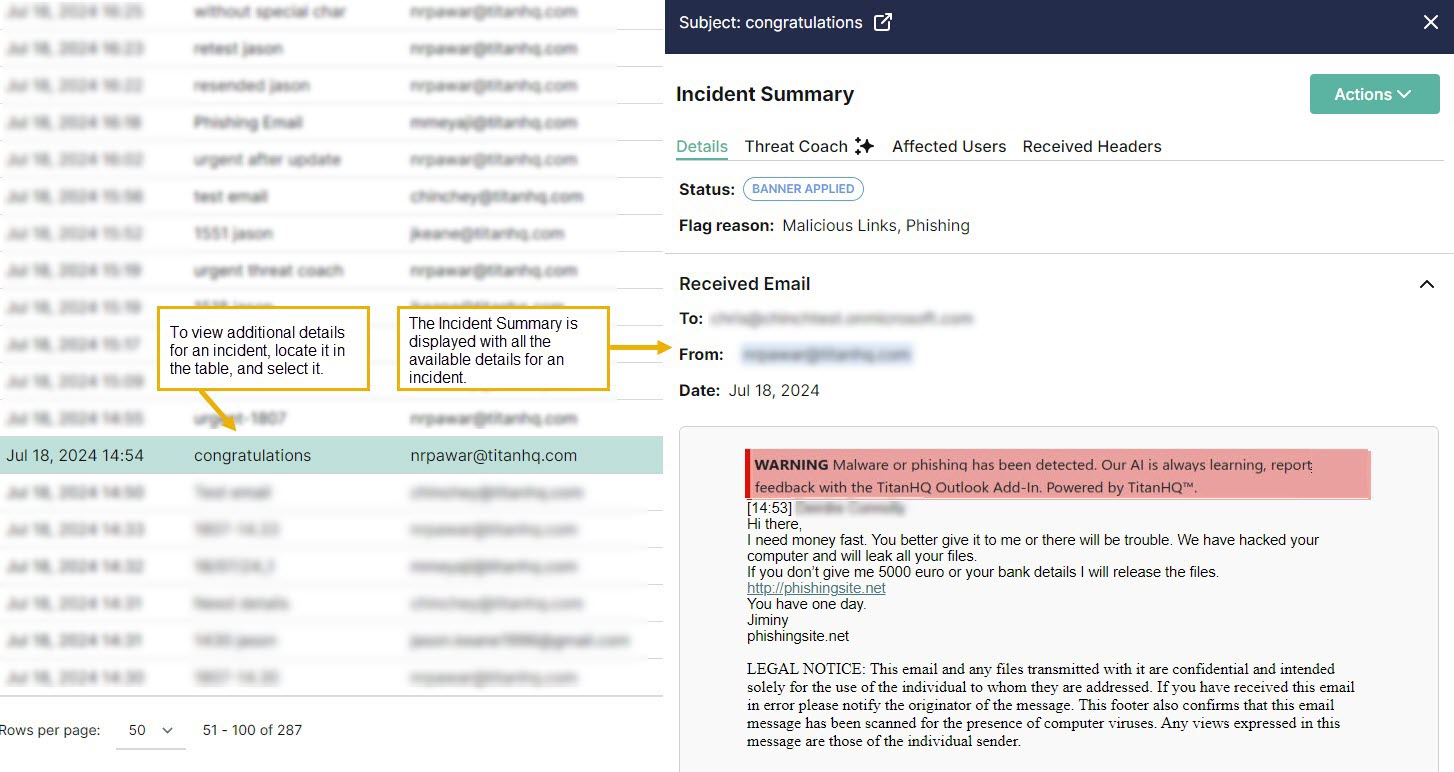
You can move between incidents in the table, and as you select each one, the Incident Summary slideout repopulates with the data. Select the fullscreen
 icon if you want to view the Incident Summary in fullscreen.
Incident Summary
Section titled “Incident Summary”The Incident Summary page shows all available details for an incident listed in Email Security > Incidents. When you select the incident you want to view in the Incidents table, the Incident Summary page appears as a slideout. You can move between incidents in the table and the Incident Summary page repopulates with the new data. You can select the fullscreen icon beside the Subject at the top of the page to expand it.
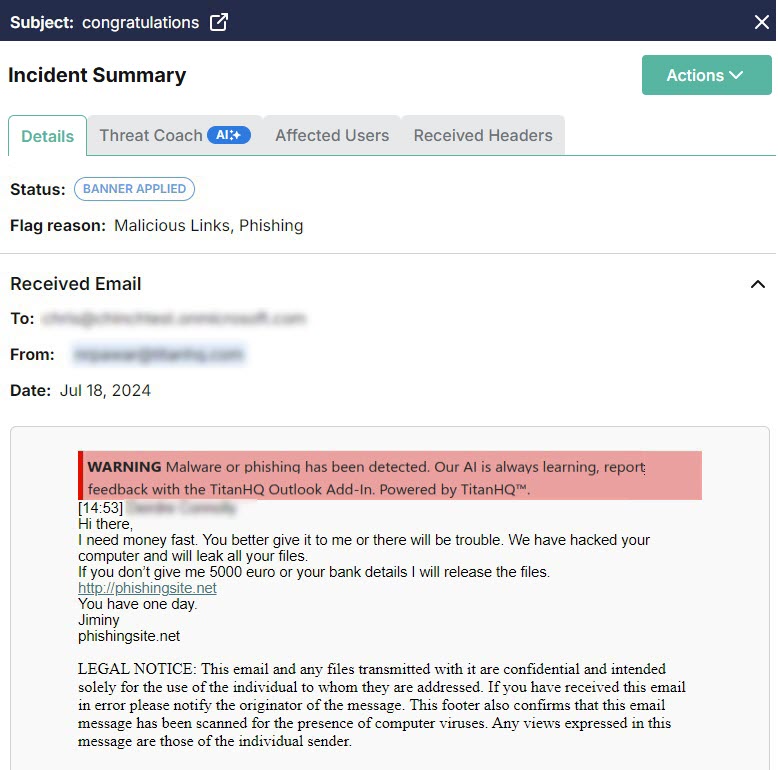
You can navigate the four tabs at the top to find more information about the incident.

DETAILS
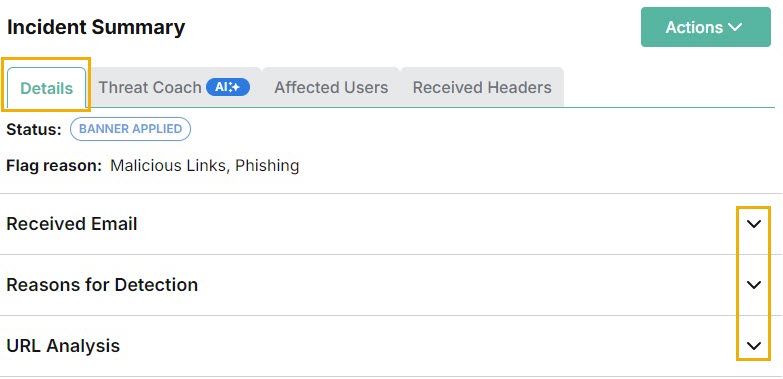
The Details tab is automatically displayed when the Incident Summary page opens. It includes the status, flag reason and content of the email. If the email was flagged as phishing or fraud, Reasons for Detection and URL Analysis sections appear below the Received Email section. All of these sections can be expanded and collapsed by selecting the up/down arrow.
-
Status
Every incident is assigned a status
Status
Description
Available Actions

An email has been flagged by a user as phishing or clean using the TitanHQ for Outlook add-in.
This incident needs Admin attention and review.
Note
If the email has been sent to only one recipient and has been reported as phishing, then it is automatically remediated to the junk folder.
Remediate
Mark as Safe
Allow Sender
Allow Domain

Emails can be remediated in the following ways:
Administrator has reviewed this email and determined it was malicious and selected to move it to a user's Junk folder.
An email has been flagged by a user as phishing using the TitanHQ for Outlook add-in.
This email has been moved to the Junk folder for all recipients.
Mark as Safe
Allow Sender
Allow Domain

Email Security has flagged this email as suspicious and applied a warning banner before delivering it to a user's Inbox.
Remediate
Mark as Safe
Allow Sender
Allow Domain
Administrator has reviewed this email and determined it is safe. Once marked as safe, the email is then delivered to all recipients with a banner marking it as safe.
Remediate
Allow Sender
Allow Domain

Auto remediation has been enabled meaning that this email has automatically been moved to the Junk folder for all recipients.
Allow Sender
Mark as Safe
-
Flag Reason
The following table explains reasons why an email can be flagged for further investigation.
Flag Reason
Description
User Reported Phishing
A user reported this email as phishing with the TitanHQ for Outlook add-in.
User Reported Spam
A user reported this email as spam with the TitanHQ for Outlook add-in.
User Reported Clean
A user reported this email as clean with the TitanHQ for Outlook add-in.
Suspicious Text
Email Security detected suspicious text in the body of this email.
Malicious Links
Email Security detected malicious links in the body of this email. A malicious URL is a link embedded in an email that was created with the purpose of promoting scams, attacks, and frauds. When selected, malicious URLs can download ransomware, or lead to phishing or spearphishing emails.
Phishing
Email Security flagged this email as a phishing attempt. Phishing emails attempt to trick people into revealing personal or confidential information which can then be used illicitly; for example, to steal a recipient's money or identity.
Spoofed Display Name
Email Security detected a spoofed display name. Email spoofing is the creation of an email with a forged sender address to intentionally mislead a recipient about its origin.
Spam
Email Security flagged this email as spam. Spam refers to unsolicited emails that are sent to a large number of recipients, usually as advertising.
Fraud
Email Security flagged this email as fraud. Email fraud intentionally deceives the recipient into sharing personal data, such as bank or credit card details.
Graymail
Email Security flagged this email as Graymail. Graymail refers to solicited marketing emails and comes from a legitimate source. Recipients once subscribed to them and now may no longer open or read them.
Exploited Domains
Email Security detected this email as coming from a free email service, which malicious actors frequently use to launch phishing attacks. An alert banner was added as a reminder to users to stay vigilant, even if the email content does not look suspicious.
-
Actions
From the Actions menu, select an action to take on this incident.
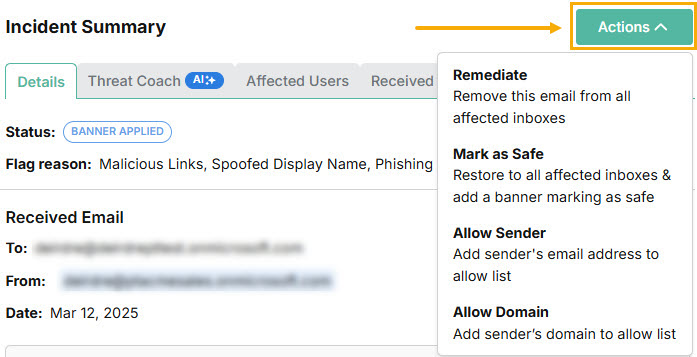
When you select one of the following actions for an email or domain, it is applied to all affected users. Select the Affected Users tab to see a list of all users that received the email.
-
Remediate: This action removes the email from all affected inboxes.
-
Mark as Safe: This action adds a green banner to this email marking it as safe. The email is restored to all affected inboxes.
-
Allow Sender: This action adds the sender to the Allow List. The email is delivered to the user’s inbox without analysis. See Adding a Sender to the Allow List for additional information.Adding a Sender to the Allow List
-
Allow Domain: This action adds the domain to the Allow List, so that any email using that domain is delivered to the user’s inbox without analysis. See Adding a Domain to the Allow List for additional information.Adding a Domain to the Allow List
-
-
Banners
Email Security adds a banner to an email based on the following:
-
Threat reported or detected: A Warning banner is applied if malware or phishing has been automatically detected by Email Security.

If spam is detected, then you’ll see a warning banner specifically for spam:

If your administrator has flagged the email as phishing, then it also receives a Warning banner:

If there is malicious intent in the language of an email, a warning banner is applied:

If an email is reported as phishing using the Outlook Add-in, the email is moved to the Junk folder and a new banner is applied:

If an email is reported as spam using the Outlook Add-in, the email is moved to the Junk folder and a new banner is applied:

-
No threat detected: If an email is considered clean and no threat has been detected, a green banner is applied.

-
Exploited Domains: If you have turned on the Exploited Domains feature, then it means that an alert banner is added to emails from domains known to be frequently used in phishing attacks. It is a reminder to users to stay vigilant, even if the content of an email does not look suspicious.

The language and tone in some emails may indicate that a phishing attempt is being made. When this happens, an alert banner is applied to caution you.

-
Anti-spoof: When Anti-spoof is enabled, manipulated display names are checked, and if detected, an alert banner is added.

-
Info: When Graymail is enabled, it is treated as malicious, and an information banner is added to alert customers and users. If auto remediation is enabled, graymail is auto remediated.

-
THREAT COACH
Threat Coach is an AI-driven feature to help you understand phishing emails. Powered by TitanHQ AI, Threat Coach analyzes incoming emails for sentiment, context, tone, and potentially malicious intent. Threat indicators are highlighted and explained so that you can learn more about the threats used in phishing emails.
-
To access Threat Coach, go to Incidents and select the Resolved tab.
-
Go to the Incident Summary page for the incident you want to view, and select the Threat Coach tab.
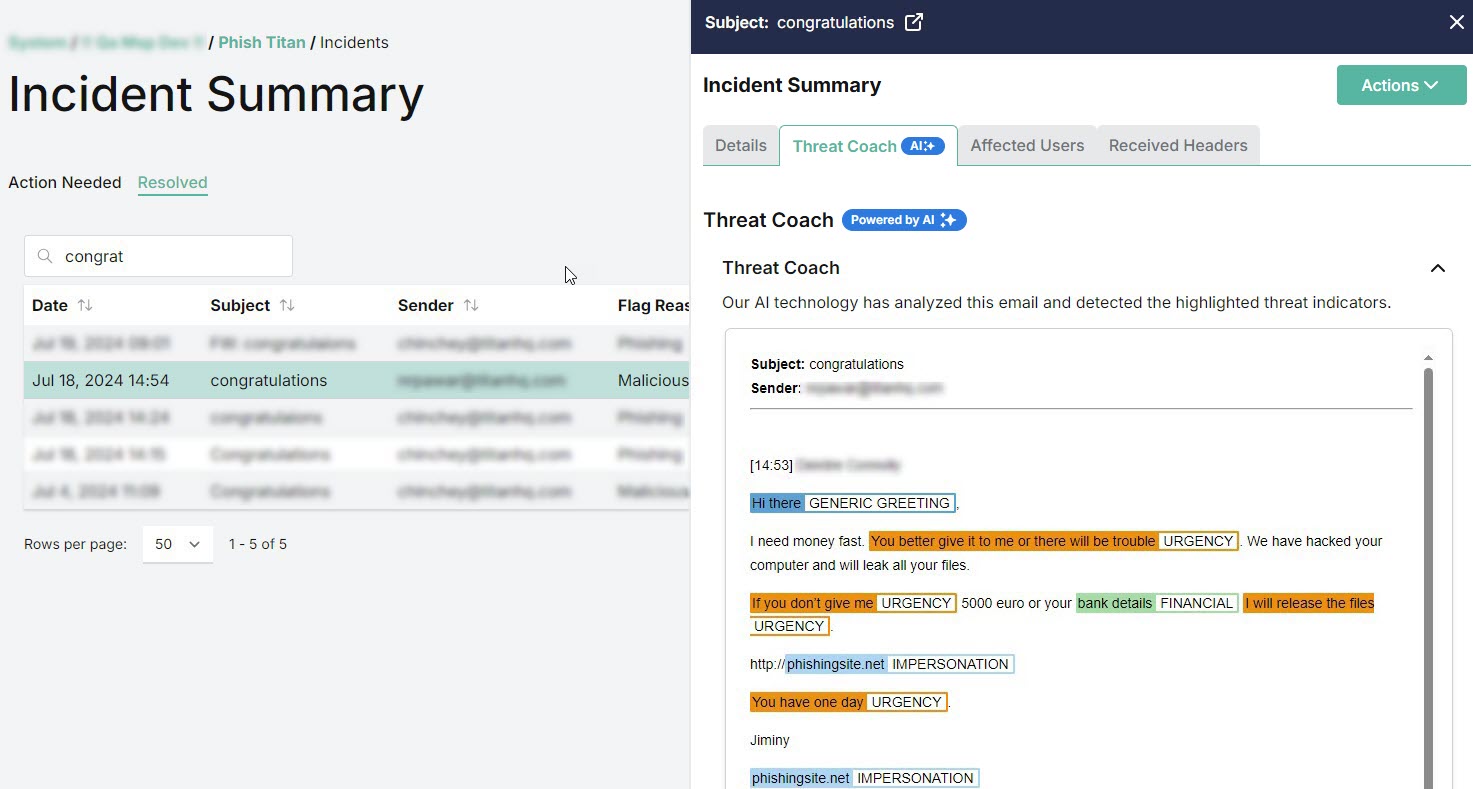
If the email has been analyzed, then it will display threat indicators, which are described in the Indicator Guide in the section below the email contents.
-
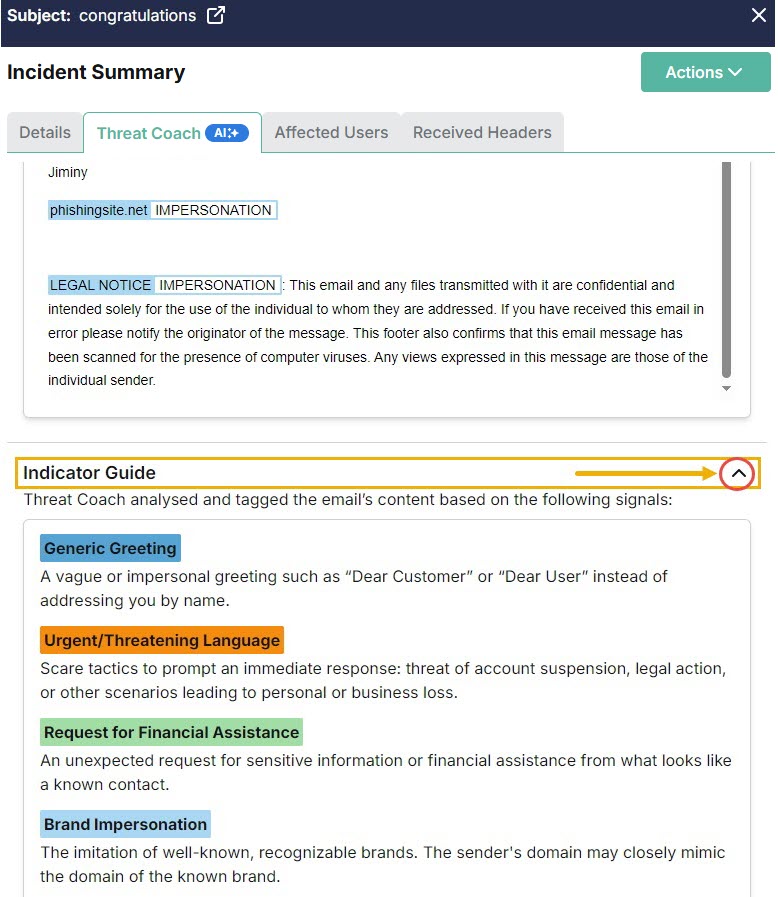
The Indicator Guide lists potential signals of a phishing email, including:
-
Generic Greeting: Generic or vague greetings like “Dear Customer” or “Dear User” instead of using your name.
-
Brand Impersonation: Mimicking well-known brands, often using a similar sender domain.
-
Spelling/Grammar Errors: Noticeably poor, inaccurate or incorrect spelling and/or grammar.
-
Request for Financial Assistance: Unexpected reqest for sensitive information or financial help from a seemingly known contact.
-
Urgent/Threatening Language: Urgent scare tactics; threats of account suspension, legal action, or other losses.
-
Requests for PII: Request for personally identifiable information like bank details, credit card, or social security number.
-
Suspicious URL: Links unrelated to sender’s domain or mimicking a reputable branded domain.
-
Unexpected Reward: The promise of an unexpected gain like a tax refund or bonus from your bank.
-
Unrealistic Offer: The promise of big gains by providing personal information or clicking on suspicious links.
-
AFFECTED USERS
The date and subject of the email are listed here, along with the email addresses of the recipient and sender. The name of the customer is also listed.
RECEIVED HEADERS
The content of the received header is displayed.