Email Security MSP Overview
Source: support.titanhq.com Product: PhishTitan Imported content type: docs_page Product stream: email-security
Email Security MSP Overview
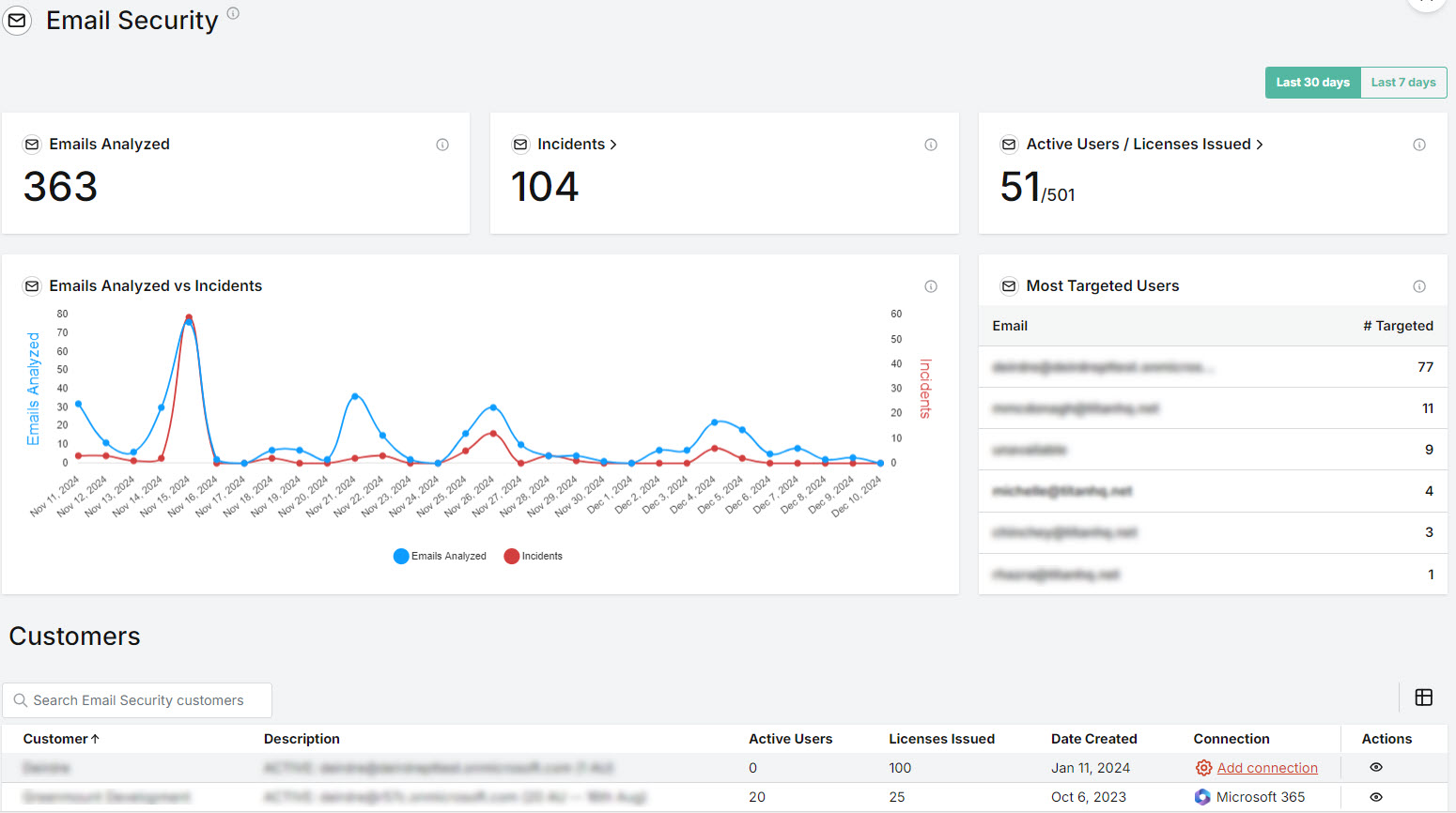
Section titled “Email Security MSP Overview”Select Email Security > Overview to see a summary of activity for all your customers and a list of your customers. The default view is the last 30 days, but you can change this by selecting Last 7 Days in the upper right corner.
-
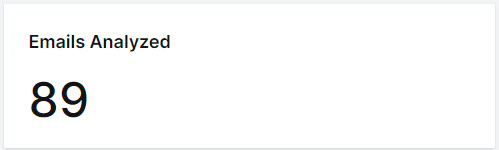
Emails Analyzed
Here you can see the total number of emails processed for the selected time period.
-
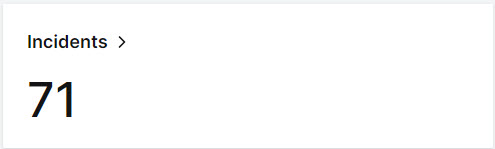
Incidents
You can see the total number of phishing emails received by your customers for the selected time period in the Incidents section. Select this box to go to Incidents, where you can view, resolve, and manage incidents.
-
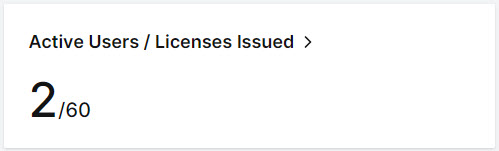
Active Users/Licenses Issued
In this section, you can compare the combined total of your customers’ active users to the overall number of Email Security licenses that were issued by you. Select this box to go to License Usage, where you can monitor your relationship with your customer based on licenses and usage.
-
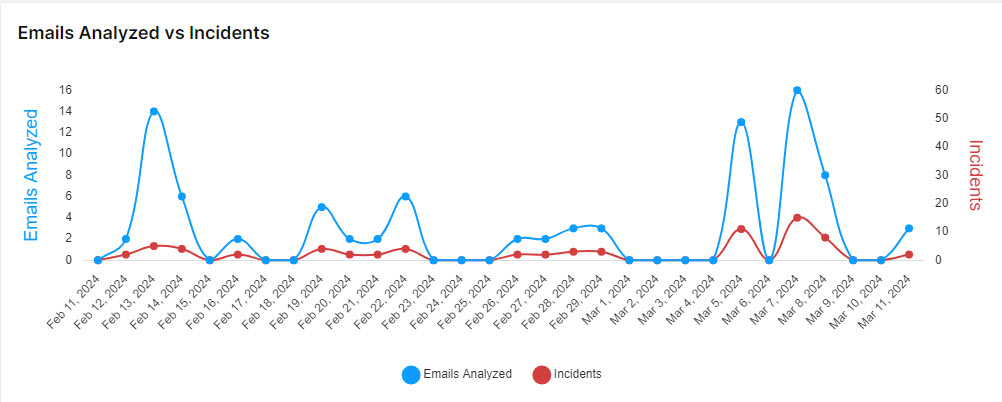
Emails Analyzed vs Incidents
View a comparison of emails that have been processed compared to the number of incidents received.
-
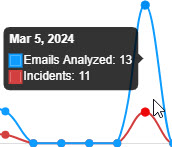
Hover your mouse over the graph to display a summary for a particular date.
-
Select and de-select the labels to add and remove items from the graph.

-
-
Email Security Customers
This is a list of all your customers to whom you have issued licenses.

Use the Search
 box to search the names of your Email Security customers.
Select the column
 icon to display the Customers table column names. Slide each on and off to show or hide a column.
-
Customer: Name of your customer.
-
Description: A short description of your customer.
-
Active Users: These are M365 active licensed users. The number is updated daily based on the active user license.
-
Licenses Issued: The total number of licenses issued by you to all of your customers.
-
Date Created: Month, day and year that your customer was issued licenses and added to the system.
-
Connection: Indicates if a customer is connected to a Microsoft 365 account. The
 label shows which customers are connected; the
  link highlights those customers who are not.
Select the Add connection link to begin Connecting and Configuring a Customer Account.
-
Actions: Select the view
 icon for a customer to drill down to the customer level to view and further manage that customer.
-
-
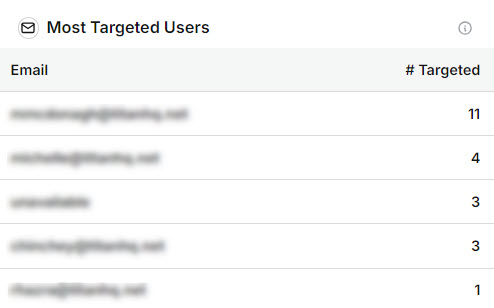
Most Targeted Users
View a list of the most attacked email addresses, with the most targeted user listed first. The # Targeted column indicates the number of malicious emails sent to the user.
To add a new customer, see Add a Customer Account.