Administrators
Source: support.titanhq.com Product: SpamTitan Imported content type: docs_page Product stream: skellig
Administrators
Section titled “Administrators”Go to Settings > Administrators to view and manage SpamTitan administrators.
-
Use the search
 box to search the list of administrators.
 -
Select the column
 icon to display the table column names. Slide each on and off to view or hide a column.
 -
To add an administrator, go to the Actions dropdown menu and select Add an Administrator. See Add an Administrator for further details.
-
To delete an administrator, first select the box
 beside the administrator (or administrators) and then select the Actions dropdown menu. Select Delete.
 -
You can enable or disable enforced 2FA from the Actions dropdown menu. If you’re an MSP, see Two-Factor Authentication on the MSP Level for more information. If you’re a customer admin, go to Two-Factor Authentication on the Customer Level.
The following information is available for each administrator:
-
First Name: Administrator’s first name.
-
Last Name: Administrator’s last name.
-
Email: Email address for administrator.
-
Enforced 2FA: Indicates whether mandatory (enforced) 2FA is enabled (On) or disabled (Off) for an admin.
Editing Administrator Details
Select the view  icon in the Actions column for an admin to view and further manage that admin.
Add an Administrator
Section titled “Add an Administrator”-
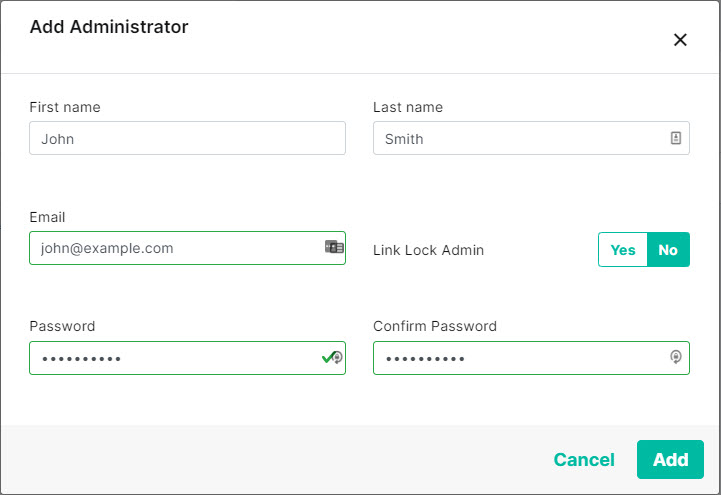
Go to Settings > Administrators and from the Actions dropdown menu, select Add Administrator.
-
Enter details for this administrator:
-
First Name: Enter the first name of this administrator.
-
Last Name: Enter the last name of this administrator.
-
Email: Enter an email address for this administrator.
-
Link Lock Admin: Select YES to allow this administrator to enable and manage Link Lock. See Link Lock Admin.
-
Password: Enter a password for this administrator.
-
Confirm Password: Confirm the password.
-
-
Select Add.