Insights
Source: support.titanhq.com Product: PhishTitan Imported content type: docs_page Product stream: email-security
Insights
Section titled “Insights”Go to Insights to view the Threat Surface Report, which gives you an overview of phishing activity for your customers, their targeted users, and the sources of phishing activity for the last seven days.
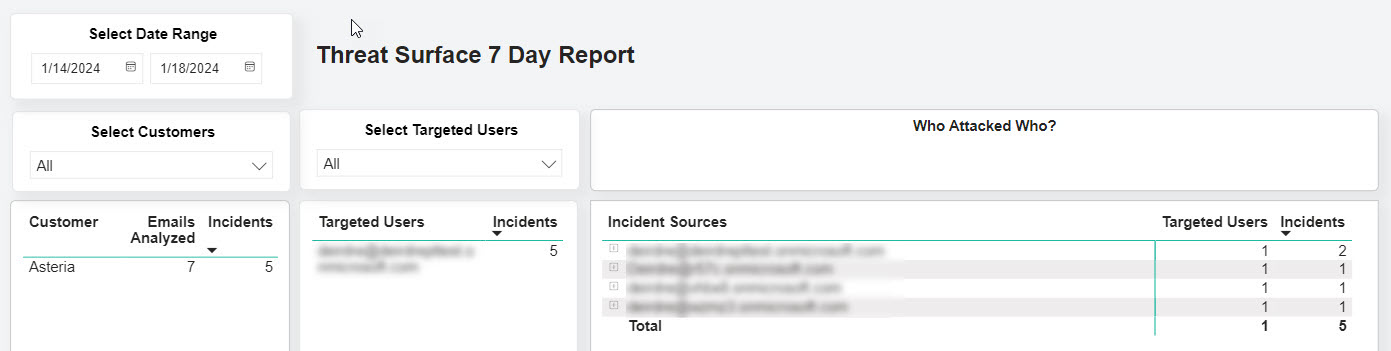
You can select targeted users and drill down to the sources of the attack, which can help you identify patterns in malicious attacks. For example, you can see if a phishing email has been sent to all users or if it has been sent to a particular group, such as C-Suite executives. You can also determine if only one user has been targeted in what might be a spear phishing attack.
The following definitions are useful as you consider the data:
-
Emails Analyzed: Total number of emails processed over the last seven days.
-
Incidents: Total number of phishing emails received over the last seven days.
-
Incident Sources: Email addresses of the phishing emails.
-
Targeted Users: Email addresses of users who have received one or more phishing emails.
For a more high-level view of phishing activity, see the Summary Report, which provides a list of the top targeted users and incident sources.
-
Date Range
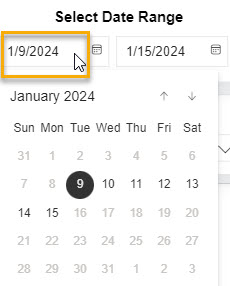
The default date range for report data is seven days, but you can select a shorter time span in the Select Date Range section.
-
Customer Table
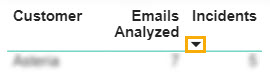
All of your customers are shown in the Customer table with those in receipt of the most phishing emails at the top.
-
Customer: Name of your customer.
-
Emails Analyzed: Number of emails analyzed.
-
Incidents: Number of phishing emails received by your customer. You can change the order to list those with the least number of phishing attacks at the top by selecting the arrow below Incidents.
If you want to select specific customers, you can search for and select one or more customers in the Select Customers dropdown menu.
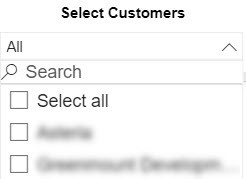
You can do the same by selecting customer(s) in the Customer table. To display the results of two or more customers, select those customers while pressing the Control key.
The Targeted Users table and the Who Attacked Who? table automatically update with the results.
-
-
Targeted Users Table
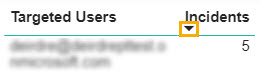
Users who have received phishing emails are shown in the Targeted Users table. Those in receipt of the most phishing emails are at the top.
-
Targeted Users: Email address of users who have received phishing email(s).
-
Incidents: Number of phishing emails received by a user. You can change the order to list those with the least number of incidents at the top by selecting the arrow below Incidents.
If you want to select specific targeted users, you can search for and select one or more email addresses in the Select Targeted Users dropdown menu.
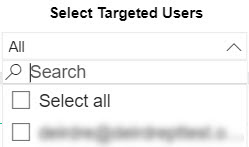
You can do the same by selecting email address(es) in the Targeted Users table. To display the results of two or more targeted users, select those email addresses while pressing the Control key.
The Customer table and the Who Attacked Who? table automatically update with the results.
-
-
Who Attacked Who?
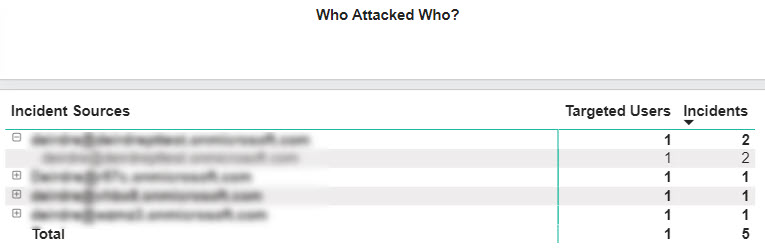
The Who Attacked Who? table helps you to identify the relationship between who received a phishing email and the source of the attack.
-
Incident Sources: The email address of the source of the phishing email. If you select the expand icon beside it, the email addresses of those who received the phishing emails are displayed.
-
Targeted Users: The number of users in receipt of phishing emails.
-
Incidents: Number of phishing emails sent by the attacker. If you selected the expand icon, you can see the list of targeted users with the number of attacks per receiver. You can change the order of the list by selecting the arrow below Incidents, which will show the least number of phishing attacks at the top.
-