Network Testing
Source: docs.titanhq.com Product: SpamTitan Imported content type: docs_page Product stream: legacy
Network Testing
Section titled “Network Testing”SpamTitan Gateway uses several network-based tests when determining the spam score for an email. Go to Anti-Spam Engine > Settings > Network Testing to enable network testing and select the tests you want to use.
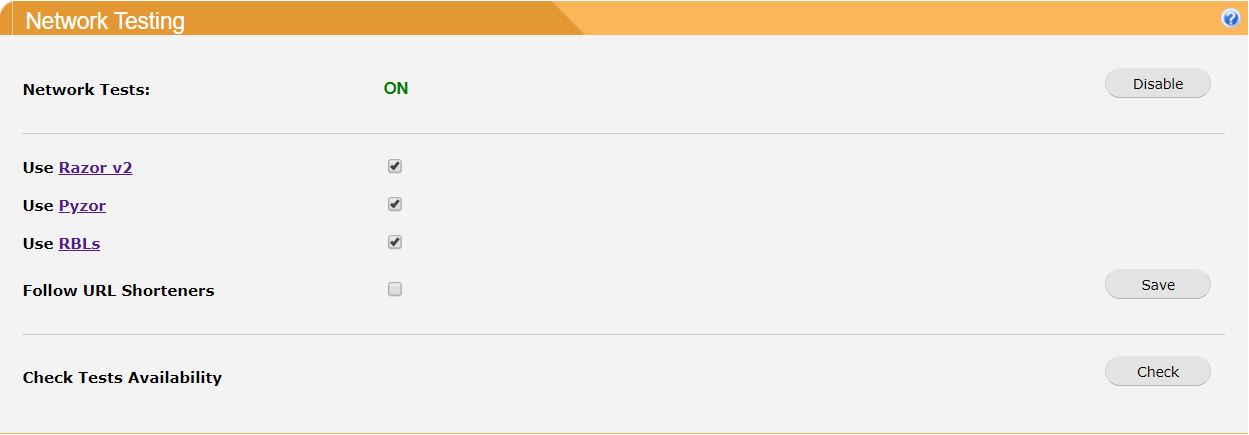
Click Enable to enable network tests or Disable to disable network tests (default: enabled).
Click the checkbox  beside Razor, Pyzor or RBL to enable each of these tests and click Save to save your selection.
-
Razor v2 and Pyzor are distributed, collaborative, spam detection and filtering networks that use statistical and randomized fuzzy checksums to efficiently spot mutating spam content. These databases are continuously updated with new spam messages (default: both enabled).
-
RBLs (Realtime Blackhole Lists) contain lists of IP addresses of known spammers and compromised machines. If enabled, SpamTitan Gateway checks if an incoming message has passed through one or more machines that have been blocked. Unlike RBLs used by the mail appliance, the results of these checks simply contribute to the final spam score for a message. RBLs require DNS access, which must be available (default: enabled).
Check Follow URL Shorteners: to allow SpamTitan Gateway to follow URL shorteners such as bit.ly. The resulting URL is checked against URL block lists and spam tests.
Click Check beside Check Test Availability to verify access to these network services is available. Periodically, remote Razor or Pyzor servers are temporarily unavailable. In this case, if these tests are enabled, there is a short delay (10 seconds) while the services timeout.