Summary Report
Source: support.titanhq.com Product: PhishTitan Imported content type: docs_page Product stream: email-security
Summary Report
Section titled “Summary Report”Go to Reports > Summary to get an overview of your Email Security activity. The default for the summary is seven days, but you can change this to a 30 Day Summary view or Last Quarter (QBR) view in the upper right corner.
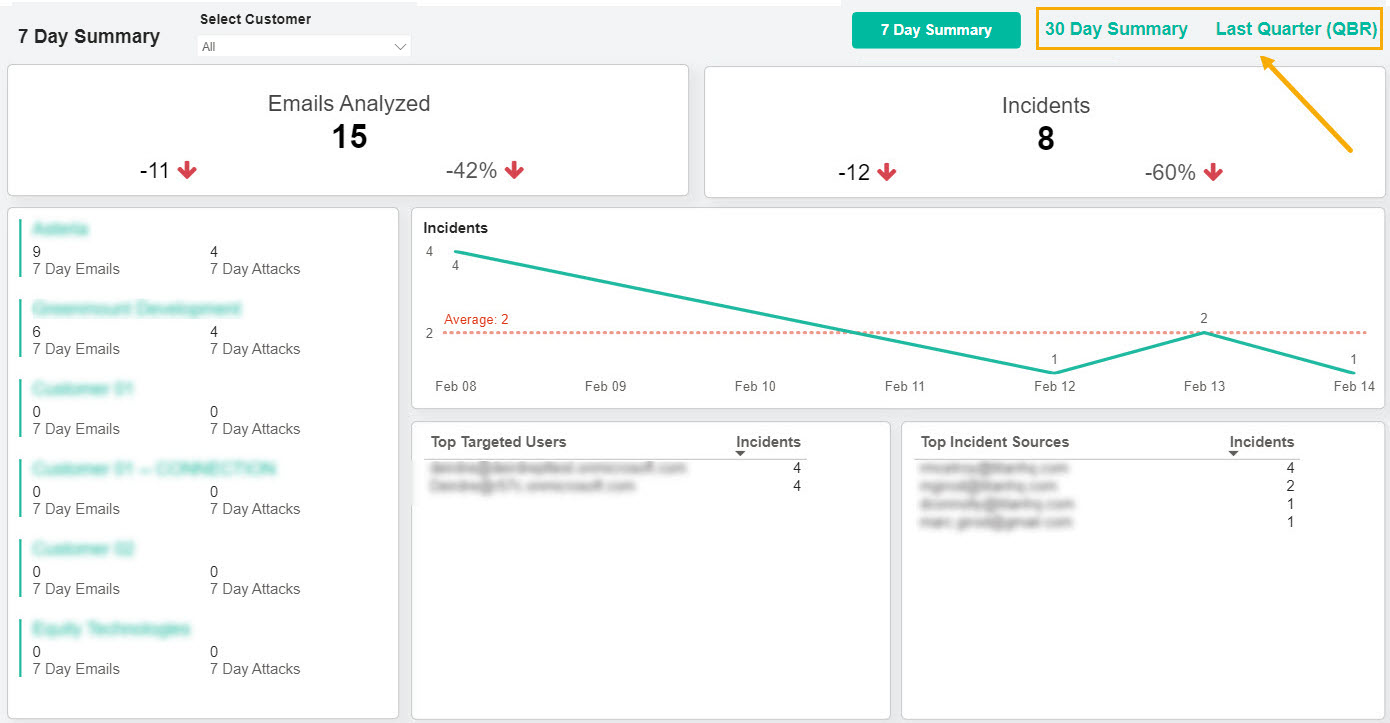
The report helps you quickly:
-
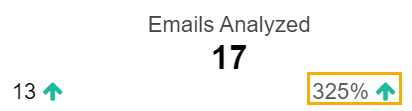
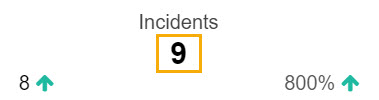
See the total number of emails analyzed and how many were identified as incidents, that is, phishing attacks.
-
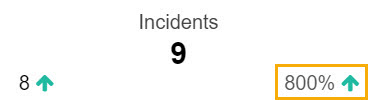
View the percentage change rate of emails analyzed and incidents.
-
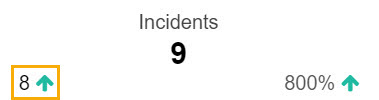
See if incidents have increased or decreased over a specific timeframe.
-
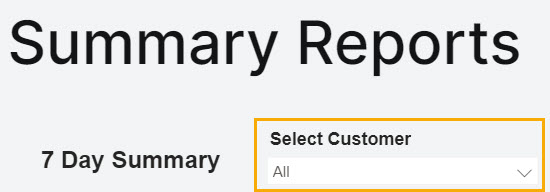
Filter results for one or more customers from the Select Customer dropdown menu.
-
Identify the users who have received the most phishing emails and the top sources of incidents.
If you want to filter results based on one or more of your customers, use the Select Customer menu to select your customer(s).
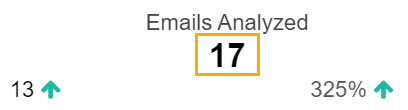
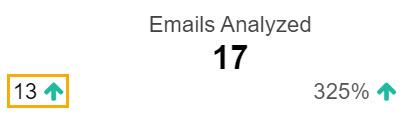
Emails Analyzed | This section of the Summary Report displays: |
| |
| |
|
Incidents | This section of the Summary Report displays: |
| |
| |
|
Incidents Trend | View the trend in phishing emails received.  |
Customer Details Table | This is a list of all your customers and shows the total number of emails analyzed and incidents for the selected timeframe. When you select a customer in the table, the Summary Report page automatically updates to show details for that particular customer. If you want to display the results of two or more customers, select those customers while pressing the Control key. 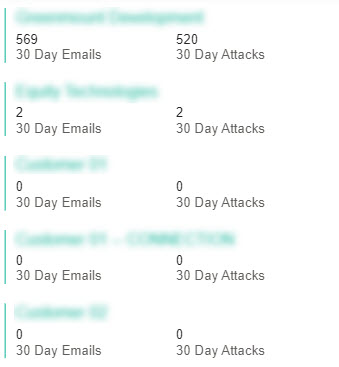 |
Top Targeted Users | Displays the top recipients of phishing emails, including the number of emails received.  |
Top Incident Sources | Displays the top sources sending phishing emails to your customers, including the number of emails sent. 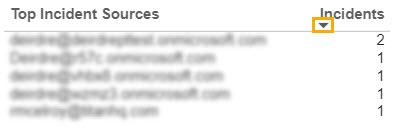 |