Domain Allow & Block List
Source: support.titanhq.com Product: SpamTitan Imported content type: docs_page Product stream: skellig
Domain Allow & Block List
Section titled “Domain Allow & Block List”You can allow or block email addresses for a domain by adding them to your domain Allow & Block List. Check the breadcrumb to ensure you are at the domain level:

Go to Filtering > Allow & Block List and follow the steps below to add an allowed or blocked domain, or an allowed or blocked email address.
Adding an Allowed or Blocked Email
Section titled “Adding an Allowed or Blocked Email”Go to Filtering > Allow & Block List and follow the steps below to add allowed or blocked emails:
-
Select the Emails tab.
-
You can add allowed or blocked emails individually or upload a list of emails in a .csv file.
-
To add allowed or blocked emails individually:
-
Select Add and choose Allow Email or Block Email.
-
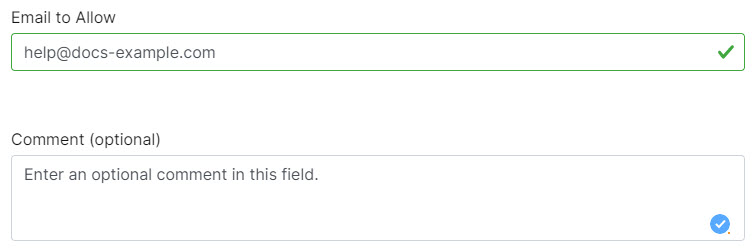
Complete the fields in the pop-up:
-
Email to Allow/Block: an email in the form of user@example.com
-
Comment (optional): Optional comments about this allow or block email.
-
-
Select Allow or Block.
-
-
To upload a list of emails:
-
Select Add and choose Upload Emails.
-
In the pop-up window, drag and drop the csv file to be uploaded.
-
-
Adding an Allowed or Blocked Domain
Section titled “Adding an Allowed or Blocked Domain”Go to Filtering > Allow & Block List and follow the steps below to add an allowed or blocked domain:
-
Select the Domains tab.
-
You can add allowed or blocked domains individually or upload a list of domains in a .csv file.
-
To add allowed or blocked domains individually:
-
Select Add and choose Upload Domain(s).
-
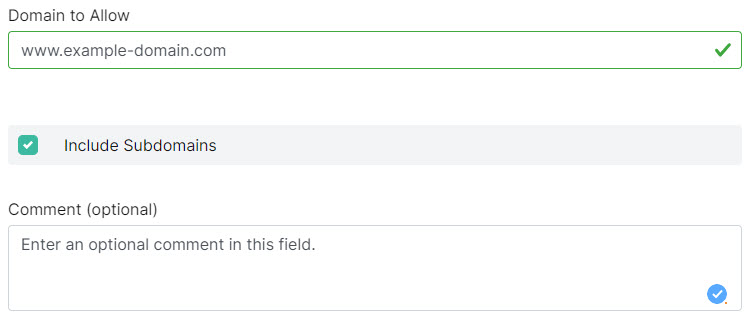
Complete the fields in the pop-up:
-
Domain to Allow/Block: Enter the domain you want to allow or block.
-
Include Subdomains: If your domain is example.com and you select this option, then all domains that end in example.com will also be allowed or blocked. For example, support.example.com and products.example.com.
-
Comments (optional): Optional comments about this allow or block domain.
-
-
Select Allow or Block.
-
-
To upload a list of domains:
-
Select Add and choose Upload Domain(s).
-
In the pop-up window, drag and drop the csv file to be uploaded.
-
-