Create an Exchange Connector
Source: support.titanhq.com Product: SpamTitan Imported content type: docs_page Product stream: skellig
Create an Exchange Connector
Section titled “Create an Exchange Connector”After you’ve created a shared mailbox, you’ll need to create an Exchange Connector to forward copies of reported mails to a specified SpamTitan server.
-
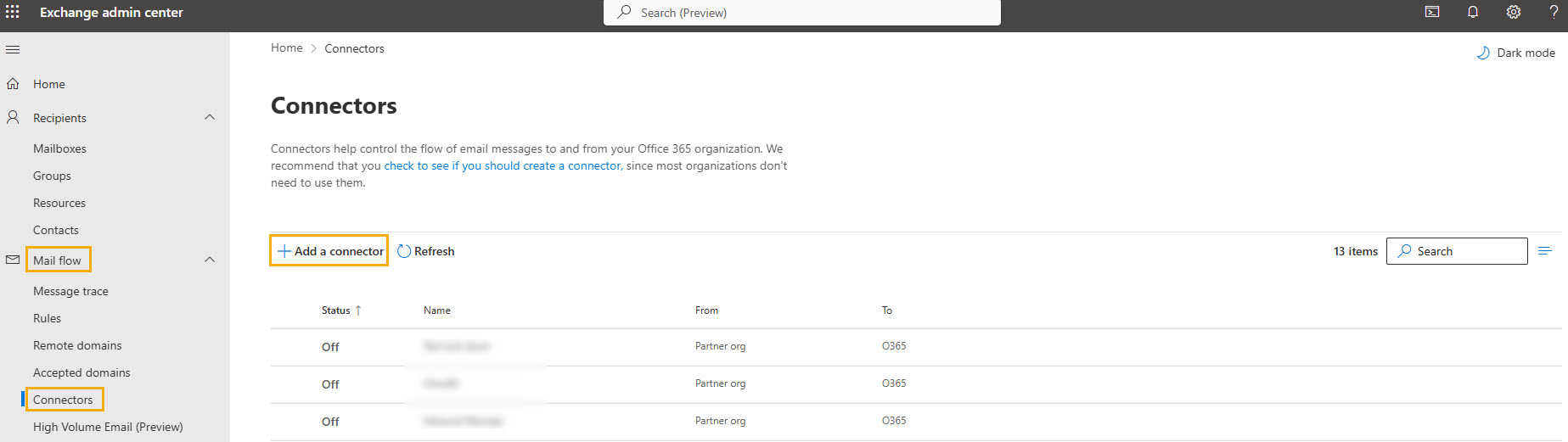
In Exchange admin center, go to the left navigation menu, and select Mailflow > Connectors. Select Add a connector.
-
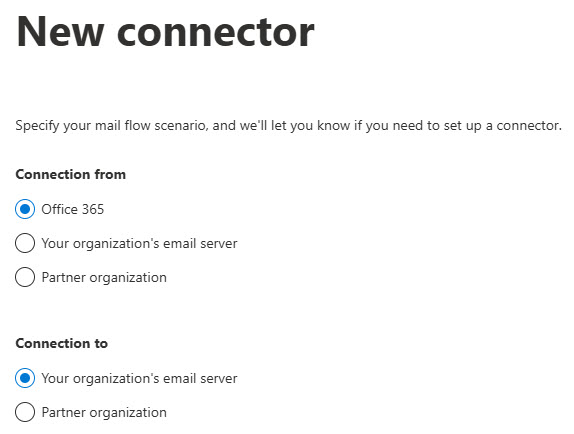
In the New connector window, select Office 365 under Connection from. Select Your organization’s email server under Connection to.
-
Select Next.
-
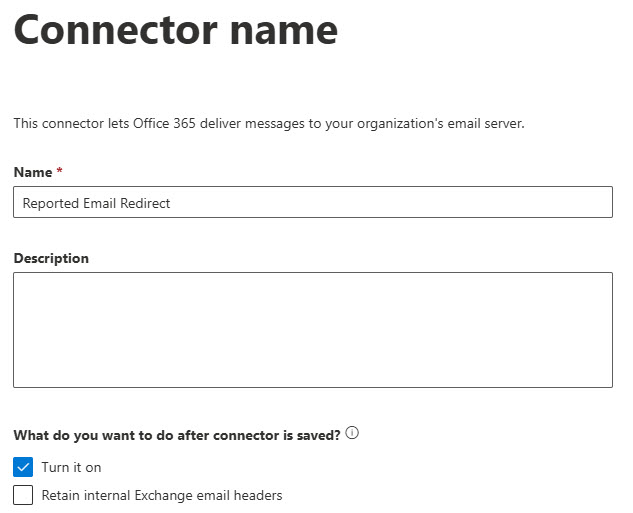
In the Connector name window, enter the name for your connector, for example, Reported Email Redirect. Add an optional description.
-
Under What do you want to do after connector is saved?, select Turn it on.
-
Select Next.
-
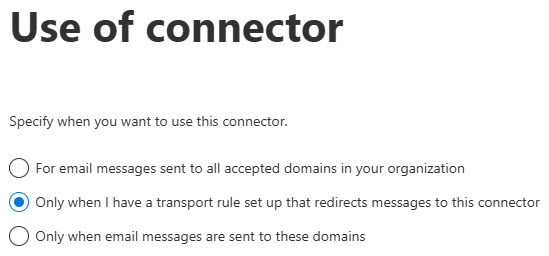
In the Use of connector window, select Only when I have a transport rule set up that redirects messages to this connector.
-
Select Next.
-
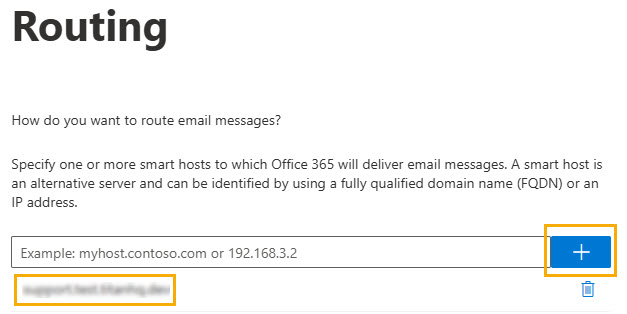
For Routing, enter the MX FQDN for the SpamTitan service you are using. This is usually one of the MX records for your email domain, for example, eu1-smtp-mx1.titanhq.com. Select +.
-
Select Next.
-
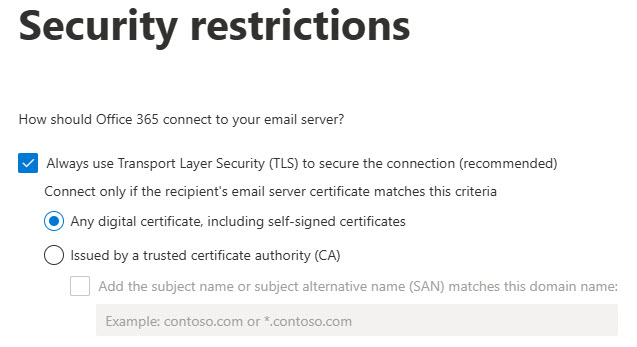
In the Security restrictions window, use Always use Transport Layer Security (TLS) to secure the connection (recommended), which is selected by default. Select Any digital certificate, including self-signed certificates.
-
Select Next.
-
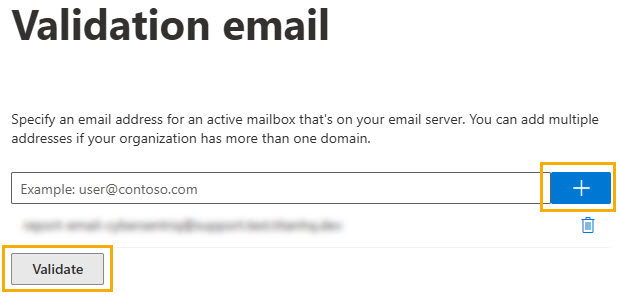
In the Validation email window, enter an email address for an active mailbox on your email server; for example, report-email-cybersentriq@ yourdomain.com and select +. Select Validate.
-
Select Next.
-
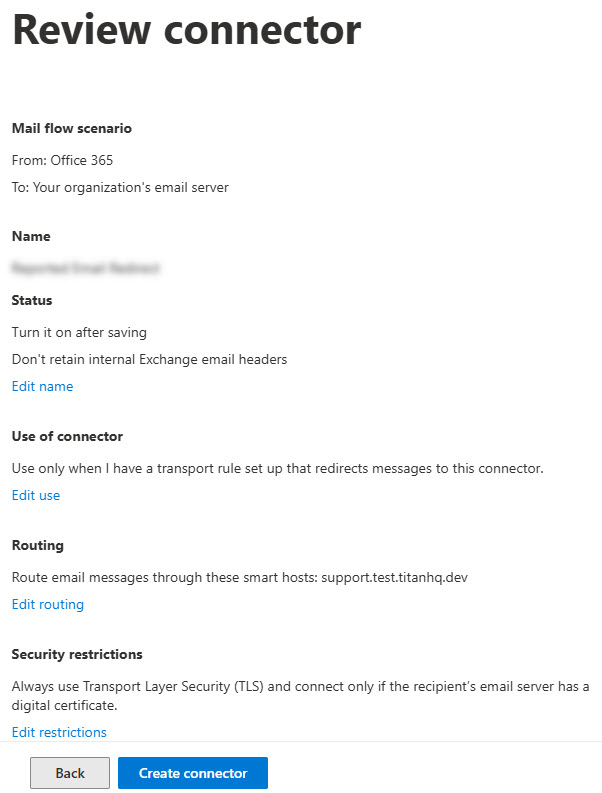
Review the connector information, and select Create Connector.
-
Select Done.
Next, create an Exchange Rule.