Removing an Email Security Account
Source: support.titanhq.com Product: PhishTitan Imported content type: docs_page Product stream: email-security
Removing an Email Security Account
Section titled “Removing an Email Security Account”The steps below explain how to remove an email security account using the Microsoft Compliance Portal.
-
Remove the journal rule that you set up when you were onboarded.
-
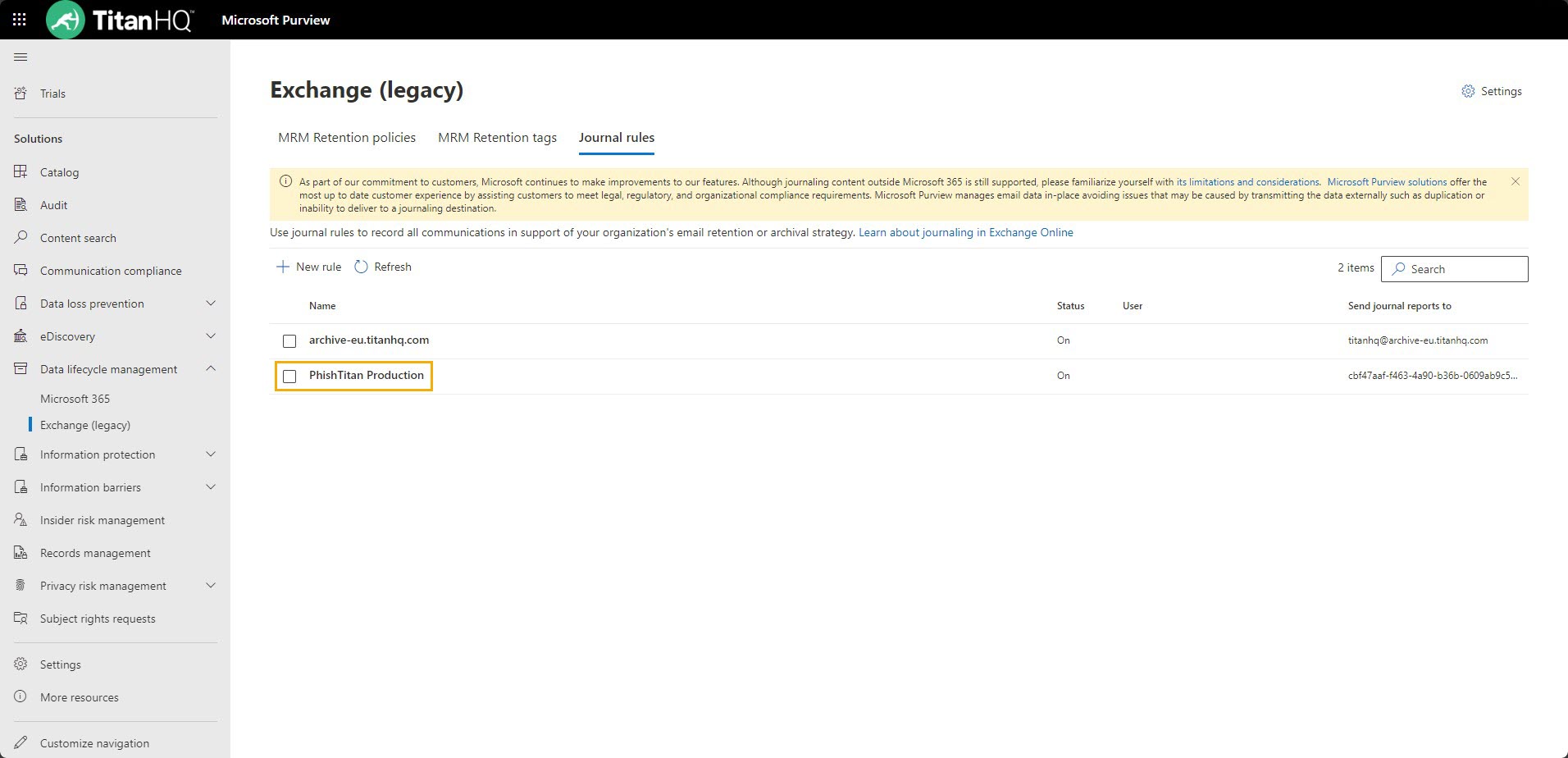
Go to https://purview.microsoft.com/datalifecyclemanagement/exchange and in the left menu, select Exchange (legacy) > Journal Rules.
-
Select the checkbox beside the journal rule and then Delete.
-
-
Change the NDR email address.
-
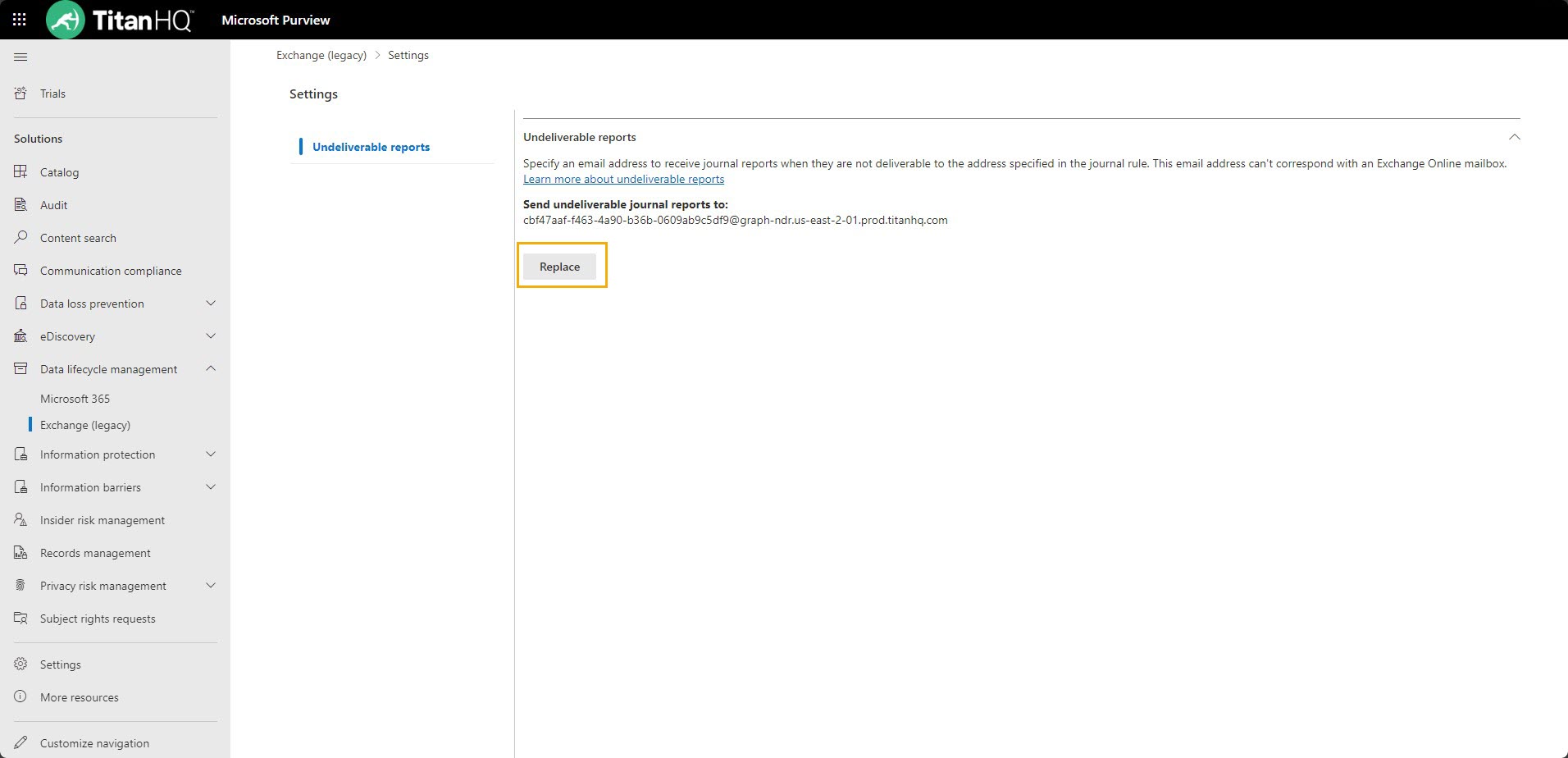
Go to https://purview.microsoft.com/settings/application-settings/datalifecyclemanagement and select Exchange (legacy) > Settings.
-
Remove the NDR email provided by TitanHQ and replace it with a new email address managed by you.
-
-
Remove the Outlook Add-in for all users.
-
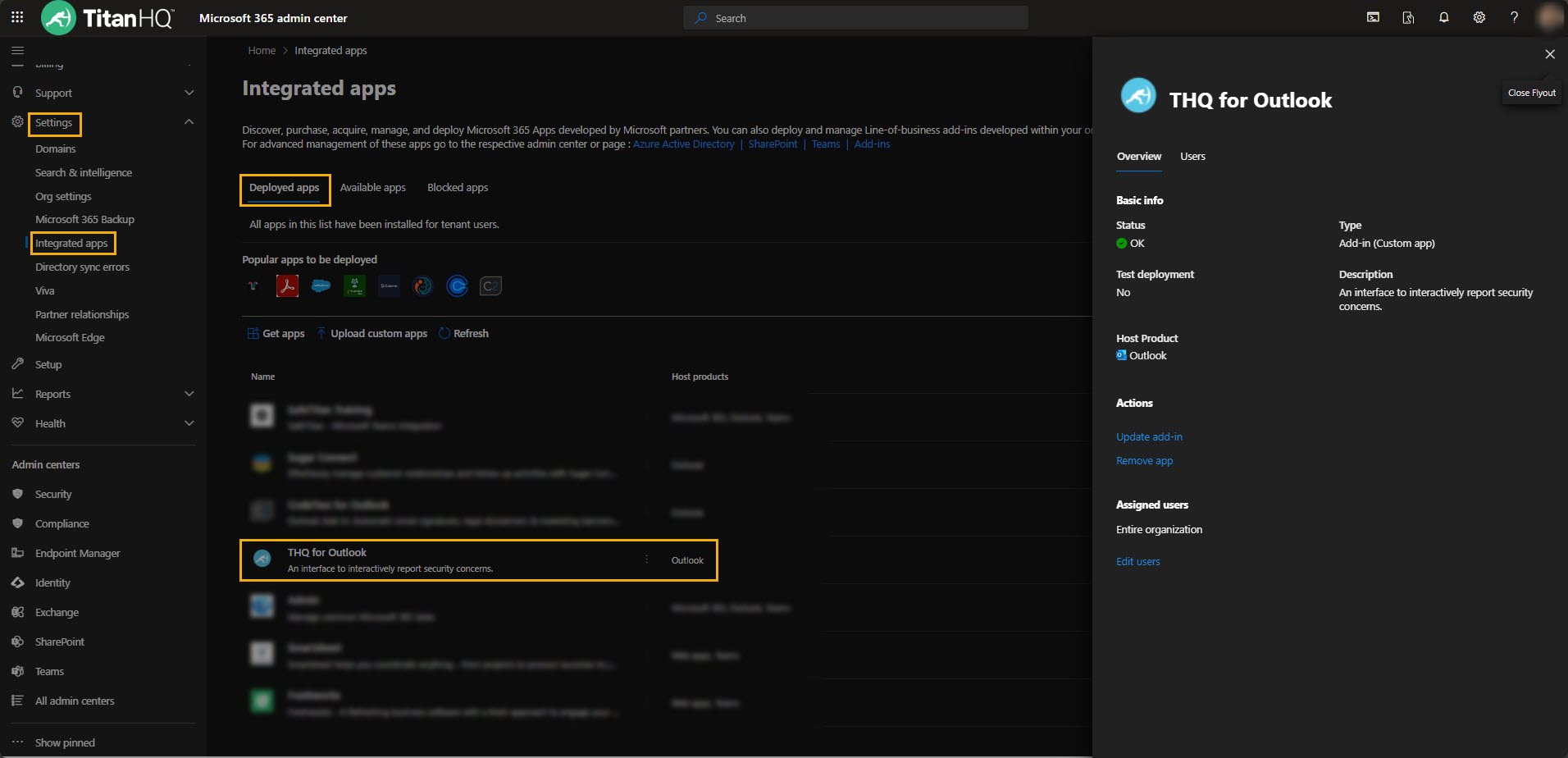
Go to https://admin.microsoft.com/Adminportal/Home#/Settings/IntegratedApps > Deployed Apps.
-
Select THQ for Outlook > Actions > Remove App. This will remove the Outlook Add-in for all end users.
-
-
Lastly, delete the Email Security Enterprise App, using either the Azure portal or Entra Admin Center.
-
Log in to your preferred portal, and go to Applications > Enterprise applications > All Applications.
-
Select the Email Security Enterprise App > the Properties tab > Delete.
-