Create a Shared Mailbox
Source: support.titanhq.com Product: SpamTitan Imported content type: docs_page Product stream: skellig
Create a Shared Mailbox
Section titled “Create a Shared Mailbox”In order to send copies of reported mails from your Outlook client to SpamTitan, you’ll first need to set up a dedicated mailbox to receive the mails.
-
Log in to Microsoft 365 admin center and in the left navigation menu, select Show All > Exchange.
-
In the Exchange admin center tab that opens, go to the left navigation panel, and select Recipients > Mailboxes. Select Add a shared mailbox.
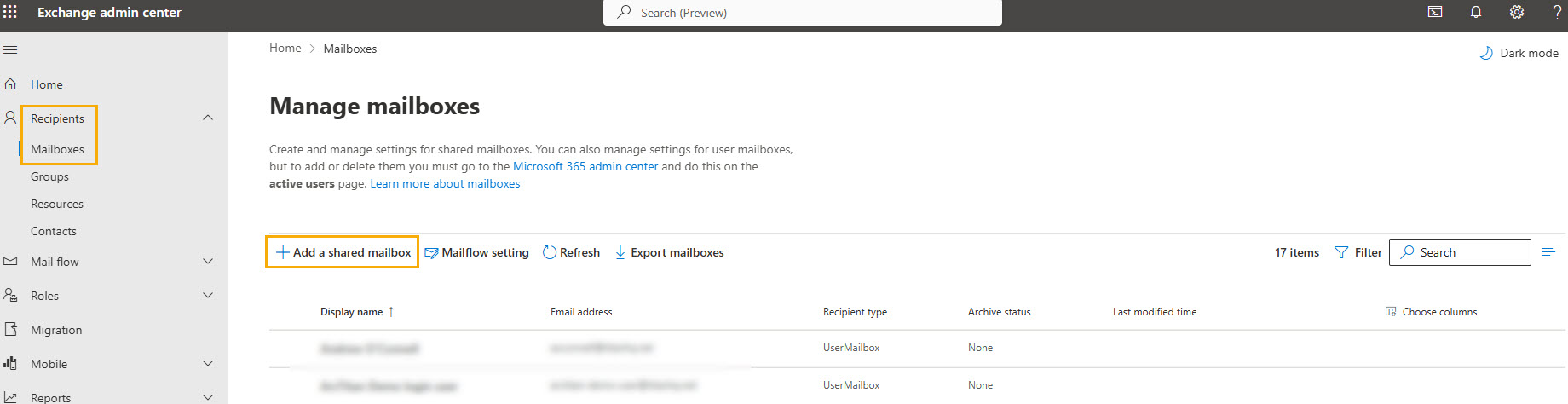
-
In the pop-up window, complete the following fields:
-
Display Name: Enter a name for the shared mailbox.
-
Email address: Enter the prefix for the email address, which is report-email-cybersentriq. Then select the domain from the Select Domain dropdown menu.
-
Alias: This field is optional and can be left empty.
-
-
Select Create.
Next, create an Exchange Connector.