Generating Certificate Signing Requests
Source: docs.titanhq.com Product: SpamTitan Imported content type: docs_page Product stream: legacy
Generating Certificate Signing Requests
Section titled “Generating Certificate Signing Requests”Go to Settings > SSL > Generate Certificate Signing Request (CSR) and follow the steps below to generate a certificate signing request. This CSR can be used either for submission to a certificate authority who will issue a trusted certificate or to create a self-signed certificate.
To create a self-signed certificate:
-
Using the Certificate Settings table below as a reference, complete the fields in the Certificate Signing Request (CSR).
-
Click Run opposite Generate Self Signed Certificate.
-
The self-signed certificate will display under Installed Signed Certificates.
If generating the CSR for submission to a certificate authority:
-
Using the Certificate Settings table below as a reference, complete the fields in the Certificate Signing Request (CSR).
-
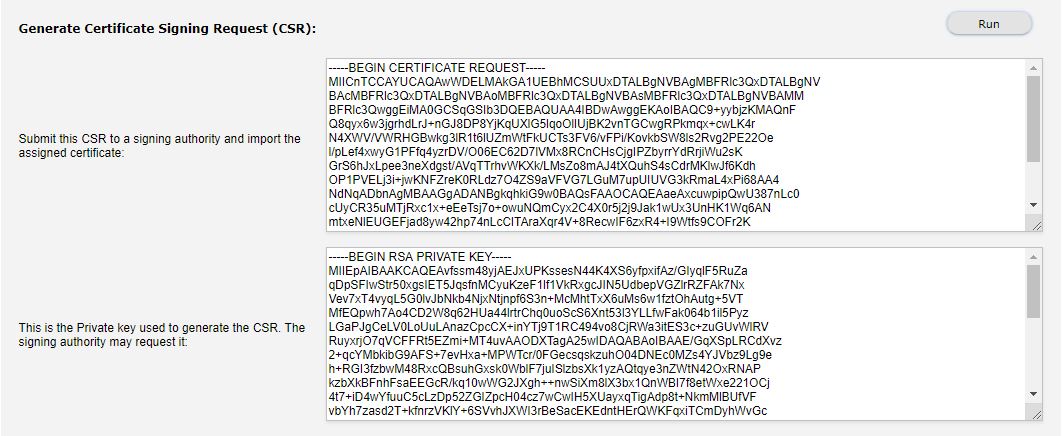
Click Run opposite Generate Certificate Signing Request (CSR). The CSR will generate and display as shown:
-
Copy the CSR text exactly and submit it to a trusted certificate signing authority for signing.
-
Once returned by the certificate authority, import the signed certificate into SpamTitan. See Importing a Signed Certificate below.
Table 1. Certificate Settings
Field | Description |
|---|---|
Common Name: | The fully-qualified domain name that is used to access the SpamTitan UI, e.g. spamtitan.example.com. This must match the server name exactly or a warning dialog will display every time you visit the site. |
Organization: | Company or organization name. |
Organization Unit: | A specific department within the company or organization (optional). |
City: | City/town where the company or organization is located. |
State/Province: | Full name of the state or province where the company or organization is located. |
Country: | Two-letter country code of the country where the company or organization is located, e.g. US or IE. |
Importing a Signed Certificate
Section titled “Importing a Signed Certificate”Follow the steps below to import a signed certificate from a trusted certificate signing authority into SpamTitan Gateway.
-
Go to Settings > SSL > Import Certificates.
-
Click Choose File beside Import Certificate from PEM: and browse to select the certificate file.
-
Click Import.
Generating Let’s Encrypt Certificate
If using Let’s Encrypt to generate a Certificate:
-
Enter the same information that you would for a signed certificate, and click Run opposite Use Let’s Encrypt to generate a Certificate.
The certificate will be automatically requested and installed. TLS and HTTPS will be set up, and it will be automatically renewed.