Ensuring Your Email is Not Marked as Spam in Office 365
Source: support.titanhq.com Product: SpamTitan Imported content type: docs_page Product stream: skellig
Ensuring Your Email is Not Marked as Spam in Office 365
Section titled “Ensuring Your Email is Not Marked as Spam in Office 365”Email being delivered from SpamTitan to Office 365 is sometimes incorrectly identified as spam, which results in delayed or failed email delivery. To avoid this, SpamTitan IP ranges should be added to your Microsoft 365 Defender.
Follow these steps to add the SpamTitan IP ranges to your Office 365 connection filter policy:
-
Log in to Microsoft 365 Defender.
-
Under Email & Collaboration in the sidebar menu, go to Policies & rules > Threat policies and select Anti-spam in the Policies section.
-
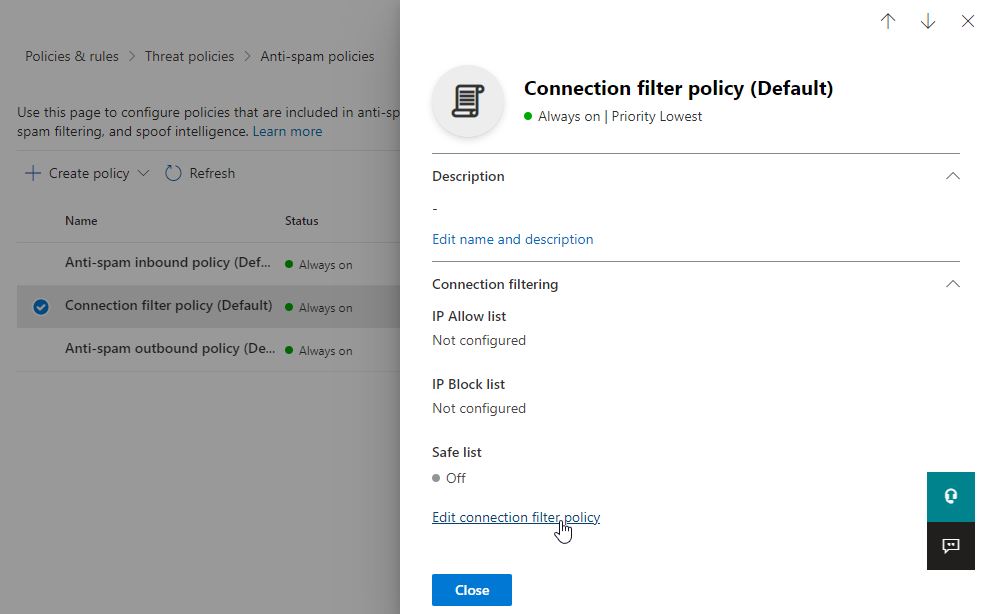
Click Connection filter policy (Default) and the ‘Connection filter policy (Default) window’ slides from the right.
-
Click Edit connection filter policy.
-
In Always allow messages from the following IP addresses or address range:, add your inbound SpamTitan IP ranges. See SpamTitan Servers.
-
Check the Turn on safe list checkbox.
-
Click Save.
-
If you were unable to turn on safe senders in Step 6, edit your connection and check Turn on safe list now.
See Use the Microsoft 365 Defender portal to modify the default connection filter policy  for additional information.