Configuring Link Lock
Source: support.titanhq.com Product: SpamTitan Imported content type: docs_page Product stream: skellig
Configuring Link Lock
Section titled “Configuring Link Lock”Follow the steps below to configure Link Lock.
-
Go to Filtering > Link Lock.
-
If Link Lock is not enabled, select Enabled. See Enabling Link Lock.
-
Select the Policy Configuration tab and configure your settings:
-
Rewrite DKIM-signed mail: Allow Link Lock to rewrite emails with a DKIM signature.
-
Follow redirection links: Select to allow Link Lock to follow redirected URLs (up to a max. of 5). This protects against a legitimate URL redirecting to a malicious URL.
-
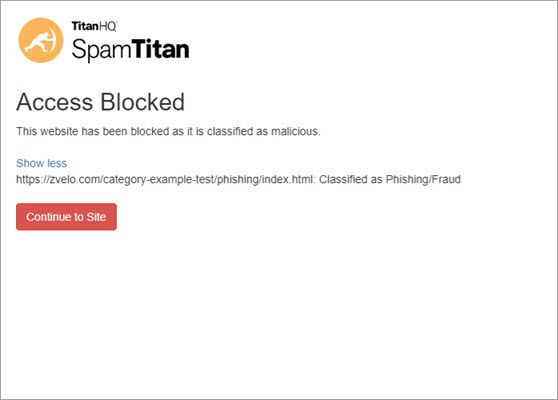
Display a button on the block page to continue to the blocked site: Allow a user to continue to a blocked URL from the block page.
-
Show the original website URL on the block page: Display the blocked URL on the block page.
-
Show logo on the block page: Displays the image currently being used on the Link Lock block page. Default:

-
Use custom logo on the block page: Select Choose File to upload a custom block page image. The following file formats are supported: PNG, JPG and JPEG. Maximum file size is 2048 KB.
-
Use custom message on the block page: Select to allow you to add a custom block page header and/or message.
-
-
Click Save Changes.
Link Lock Block Page Examples
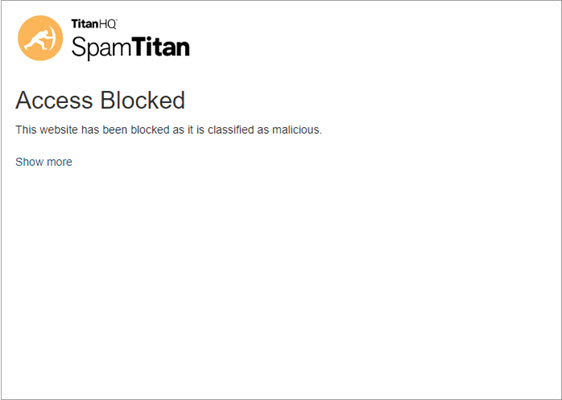
Below are examples of a Link Lock block page using the default logo, header and message. These settings can be customized for your domain using the settings described above.
 |  |