Locking Down Your Office 365 Mail Server
Source: support.titanhq.com Product: SpamTitan Imported content type: docs_page Product stream: skellig
Locking Down Your Office 365 Mail Server
Section titled “Locking Down Your Office 365 Mail Server”Follow the steps below to lock down your inbound email flow in Office 365 to only accept email from your SpamTitan. This requires you to create a receive connector in Office 365.
-
Log in to your Office 365 Exchange Admin Center (EAC).
-
Select Mail flow and then Connectors from the sidebar menu to view your connectors.
-
Select
 Add a connector and the New connector window displays. Select Partner organization as shown: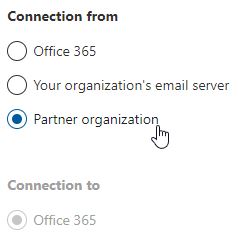
-
Select Next and the Connector name window displays.
-
In the Name field, give the connector a meaningful name. For example, SpamTitan to Office 365. Select Next.
-
In the Authenticating sent email window:
-
Select By verifying that the sender domain matches one of the following domains.
-
Enter * in the dialog box and select
 .
.
-
Select Next.
-
-
In the Security restrictions window:
-
Select Reject email messages if they aren’t sent over TLS.
-
Select Reject email messages if they aren’t sent from within this IP address range and enter your SpamTitan IP address. See SpamTitan Servers.
-
Select
to save the IP you entered:
-
Select Next.
-
-
The Review connector page displays the information you entered above. After verifying the information is correct, select Create connector.