Connect to Microsoft 365
Source: helpdesk.phishtitan.com Product: PhishTitan Imported content type: kb_article Source folder: Getting Started: Customer Admin Modified: Thu, 5 Dec, 2024 at 5:28 PM
Once a customer account has been added to Email Security, the account needs to be connected to Microsoft 365. This is done at the customer level of access and can be completed by an MSP admin if they have the required Azure access for their customer.
Follow the steps below to connect a customer account to Microsoft 365.
-
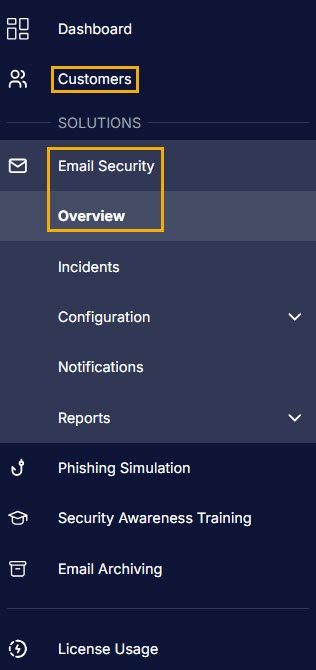
Go to your customers table, which you can access by selecting Customers or Email Security > Overview.
-
From here, you can access the customer level in one of the following ways:
-
Find the customer you want to connect to Microsoft 365 and from the Connection column, select Add Connection.
-
Alternatively, select the view icon from the actions column of the customers table. Then go to Settings > Connections > Add Connection.
-
-
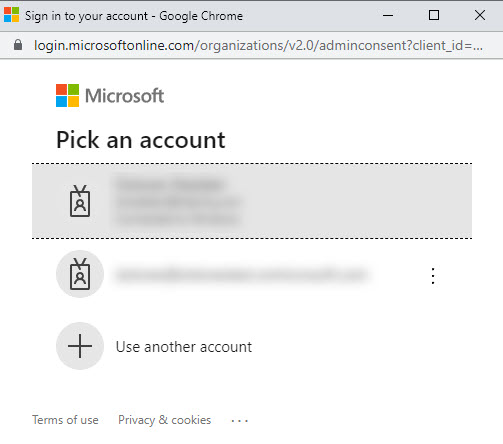
From the dialog, select your Microsoft account:
-
When prompted, enter your Microsoft password, and select Sign in.
-
If two-factor authentication (2FA) is enabled for your account, confirm login when prompted.
-
Review the permission requested and to continue, select Accept.
-
Once connected, the dialog closes and you are returned to the Connections page.