Reporting an Email with TitanHQ for Outlook
Source: helpdesk.phishtitan.com Product: PhishTitan Imported content type: kb_article Source folder: TitanHQ for Outlook Modified: Fri, 23 Jan, 2026 at 9:04 AM
A user can use TitanHQ for Outlook to report spam, false positives and false negatives directly from Outlook.
-
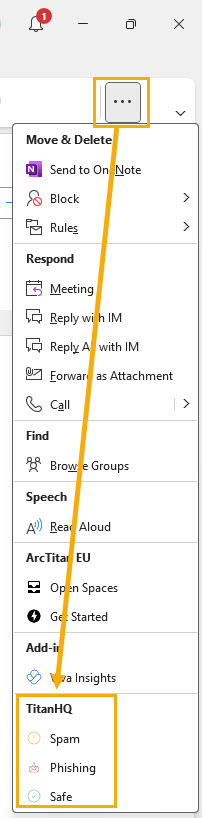
Spam: A user receives unsolicited/unwanted emails, which can be reported as “Spam”.
-
Safe: A user receives an email they know is safe, but it has an Email Security banner. This is considered a False Positive and can be reported as “Safe”.
-
Phishing: A user receives an email they suspect is phishing, but it does not have an Email Security banner. This is considered a False Negative and can be reported as “Phishing”.
Follow the steps below to report an email from Outlook (Classic) for Desktop.
-
Open Outlook (Classic) for Desktop.
-
Select the email you want to report.
-
TitanHQ for Outlook may be visible in different locations in Outlook depending on your system configuration and application preferences. Use the following examples to locate the icons:
-
Classic ribbon:

or

-
Simplified ribbon:

or
-
Within an email:

-
-
Select from the following:
-
Spam: To report unwanted/unsolicited emails.
-
Safe: To report a false positive.
-
Phishing: To report a false negative.
-